
MyST is an ecosystem of open-source, community-driven tools designed to revolutionize scientific communication. MyST supports blogs, online books, scientific papers, reports and journals articles.
Editing Markdown Cells
Working with markdown cells is exactly the same as normal in Jupyter, try taking a look at the source of this cell.
🛠 Double click to edit this cell, then type Shift-Enter to re-render the cell
Let’s start with Callouts! 💬
This is a callout (or admonition) in MyST, there are a few variants available including {note}, {important}, and {warning}.
You can find the full documentation for callouts here.
To change the style of the callout, try changing it to a {note}
🛠 Edit the callout in this cell to {note} instead of a {tip}
You can also add directive options, with a :class: dropdown as the first line of the directive. Adding the dropdown class will turn this callout into a dropdown that is initially hidden, which is great for hiding solutions in JupyterLab for students, for example!
Figures & Cross References
MyST has support for figures, images and rich cross-references to preview the figures when you hover over a reference.
🛠 Double click the next cell to see the MyST {figure} syntax

Figure 1:Relaxing at the beach 🏖
You can reference a figure with a markdown link to the name of the figure, for example, [](#beach).
🛠 Hover the cross-references to the figures
In Figure 1 we can (hopefully) see someone enjoying the beach, and in Figure 2 we can see fruit! These figures are also automatically numbered, and will update based on their position in the document.
🛠 Drag the markdown cell with fruit up to make it Figure 1
Both the caption number and all references to those cells will update instantly! ⚡️
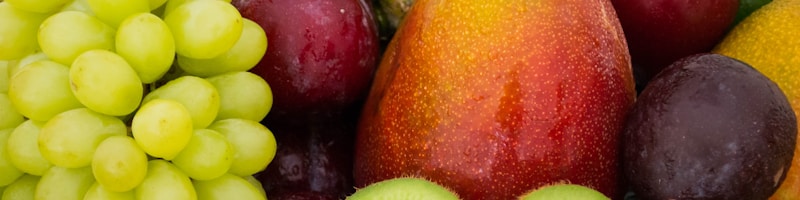
Figure 2:A random picture of fruit 🍎🍊
See the MyST Markdown Documentation
MyST Markdown can be used to include images and figures in your documents as well as referencing those images easily throughout your website, article or paper.
References refer to labeled content (e.g. a figure, document or table) and automatically generates links and extra information, like numbering.
Equations
All of the standard markdown syntax for equations will also work with the MyST renderer. The easiest way to create math is to use the dollar-syntax, for example, for inline math:$Ax=b_i$ will become
You can also now label and reference your equations, this is using a style \label{} in the dollar-math block[1]:
🛠 Double click this cell to see the label syntax
Similar to figures, you can link to the equation using a markdown link and they will be auto-labeled.
🛠 Hover the cross-references to the equation
In (1) you can see a cross-product or Equation 2 is Maxwell’s equations
Similar to the figures, these equations are auto numbered.
🛠 Drag the markdown cell with Maxwell’s equations up to make it Equation 1
External References
MyST Markdown creates structured documents that are linked to other sources, which allows us to preview directly in the editing experience.
You can link to any Wikipedia article and it will show a tooltip inline, for example, we linked to Maxwell’s equations above!
🛠 Using the short-hand wiki: link, add a link to a Wikipedia article
You can also link to GitHub issues, pull requests and even code. Just paste the link in and MyST will provide a linked preview.
For example, when we migrated to support JupyterLab 4.0, we did some work in #142. Some of the pipeline for MyST uses unifiedjs, and can be seen here as a series of plugins.
🛠 Follow the link to the code, copy a new permalink to a different line and paste it below!
See the MyST Markdown Documentation
Task Lists
Jupyter already can render tasks, but you can’t edit them when you are working through something -- but you can in MyST!
🛠 Try editing a task below and see the markdown change
Next Up
There are a few other nifty things that you can do with MyST Markdown below. You can also see all of the live demos in the documentation at https://
You can use the {eval} role to evaluate variables directly inside of your markdown cells, including widgets, sparklines and other variables.
Diagrams
We have included a few other things in this notebook so that you can explore, for example mermaid diagrams!
Proofs
You can add an reference proofs (Criterion 1). See the docs.
Tabs, Grids, and Cards
See the docs
Tab one can sync (see below)!
Tab two
These tabs are set to sync:
Tab one can sync!
Tab two
Text content ✏️
Structure books with text files and Jupyter Notebooks with minimal configuration.
MyST Markdown ✨
Write MyST Markdown to create enriched documents with publication-quality features.
Executable content 🔁
Execute notebook cells, store results, and insert outputs across pages.
MyST Markdown 🚀
Write content in JupyterLab!
You can also use math as a “directive” -- see the MyST docs on math.